Calculate Your Microsoft 365
Storage Overage Savings

Estimate your potential Microsoft 365 storage overage costs and see how much you could save by archiving less frequently accessed data across SharePoint, OneDrive, and Exchange with CrashPlan.


The highest rated offering on G2 trusted by 2.2 million+ users

Your savings grow as your data does

Annual data growth of Microsoft 365 averages 20% per year, and we don’t expect that to slow down.
Here’s what storage costs typically look like over time with a 20% data increase per year.

Storage costs without archiving

Storage costs with CrashPlan backup + archive
Year 1
Year 2
Year 3
Year 4
Year 5
Year

Get the most out of Microsoft 365 while reducing costs

Avoid Microsoft 365 pooled storage overages

Your tenant only comes with a certain amount of pooled data capacity and once you go over, you either have to remove data or pay thousands of dollars per terabyte of additional storage. CrashPlan’s space-saving archiving solution can dramatically lower, or even entirely eliminate, your need to purchase additional Microsoft 365 storage capacity.

Simplify your data lifecycle management

With archiving built into your backup policies, you ensure protection and recoverability end-to-end. Once you set your archiving criteria, CrashPlan automatically adds a pointer to the backed-up file where it normally appears in SharePoint, OneDrive, or Exchange. No additional tools to learn or processes to manage.
Keep documents accessible to users

Traditional archiving removes data from everyday workflows. CrashPlan keeps archived files accessible to end users so they can work without disruption. Plus, archived documents are stored in the same place as your backups, so you can still search, restore, and export all this data within the CrashPlan console.

Easily recover lost data

When you archive with CrashPlan, you also get all the benefits of a robust backup and recovery solution for your active data. No matter the cause of data loss, CrashPlan’s automatic cloud backups, immutable storage, search, and point-in-time recovery get you back to a clean state quickly and easily.

Leverage your existing MACC, or choose your own storage

Take advantage of the Microsoft cloud with low-cost Azure blob storage. CrashPlan can utilize your Microsoft Azure Consumption Commitment (MACC) by moving data out of your Microsoft 365 tenant and into the Azure storage you’re already committed to. If you don’t have a MACC, you can also store backups in one of our other many storage destination options.

Video: CrashPlan archiving for Microsoft 365 Demo
Click to enlarge & listen

Your tenant only comes with a certain amount of pooled data capacity and once you go over, you either have to remove data or pay thousands of dollars per terabyte of additional storage. CrashPlan’s space-saving archiving solution can dramatically lower, or even entirely eliminate, your need to purchase additional Microsoft 365 storage capacity.

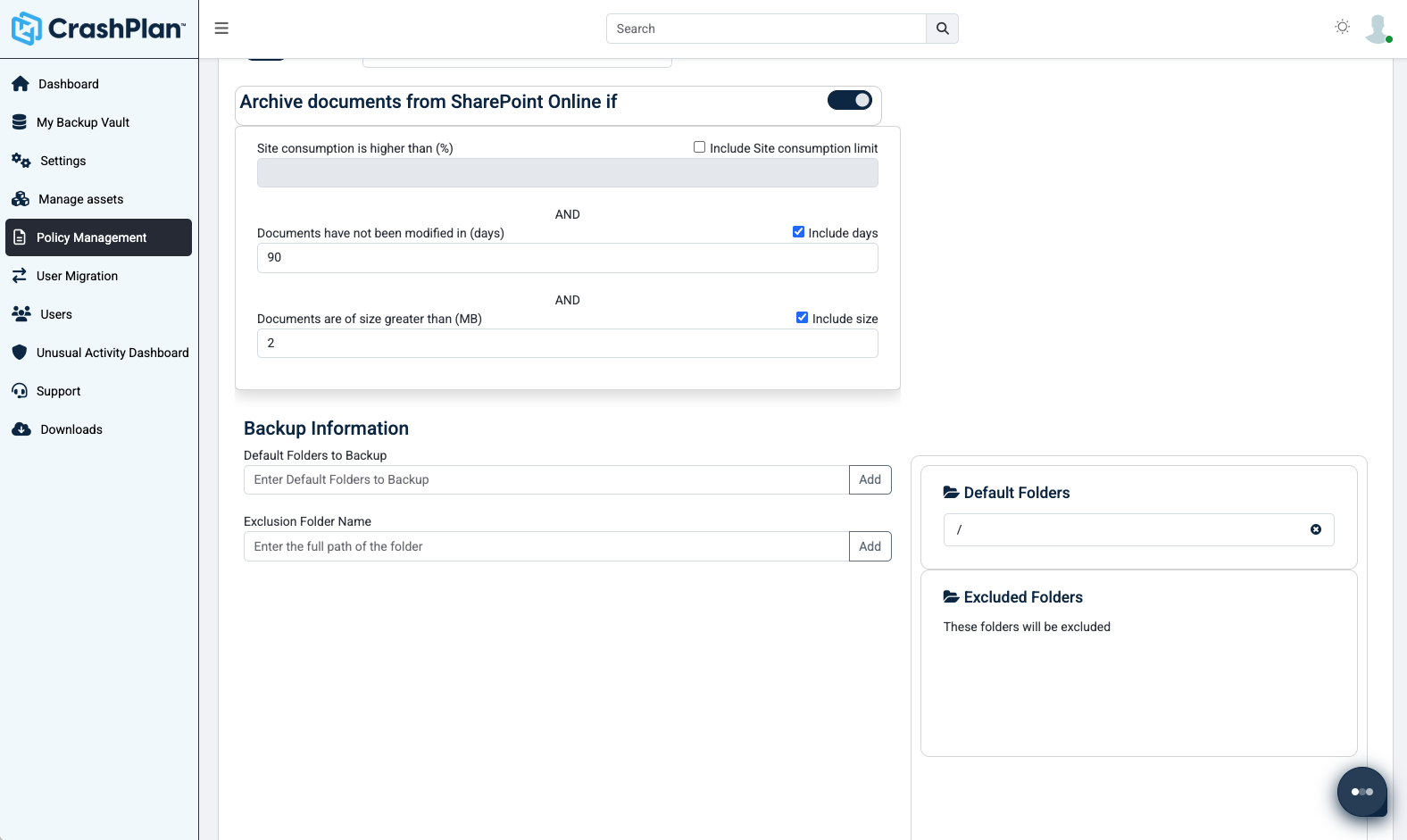
Screenshot: Archive criteria
Click to enlarge

With archiving built into your backup policies, you ensure protection and recoverability end-to-end. Once you set your archiving criteria, CrashPlan automatically adds a pointer to the backed-up file where it normally appears in SharePoint, OneDrive, or Exchange. No additional tools to learn or processes to manage.

Video: Restoring a SharePoint document
Click to enlarge & listen

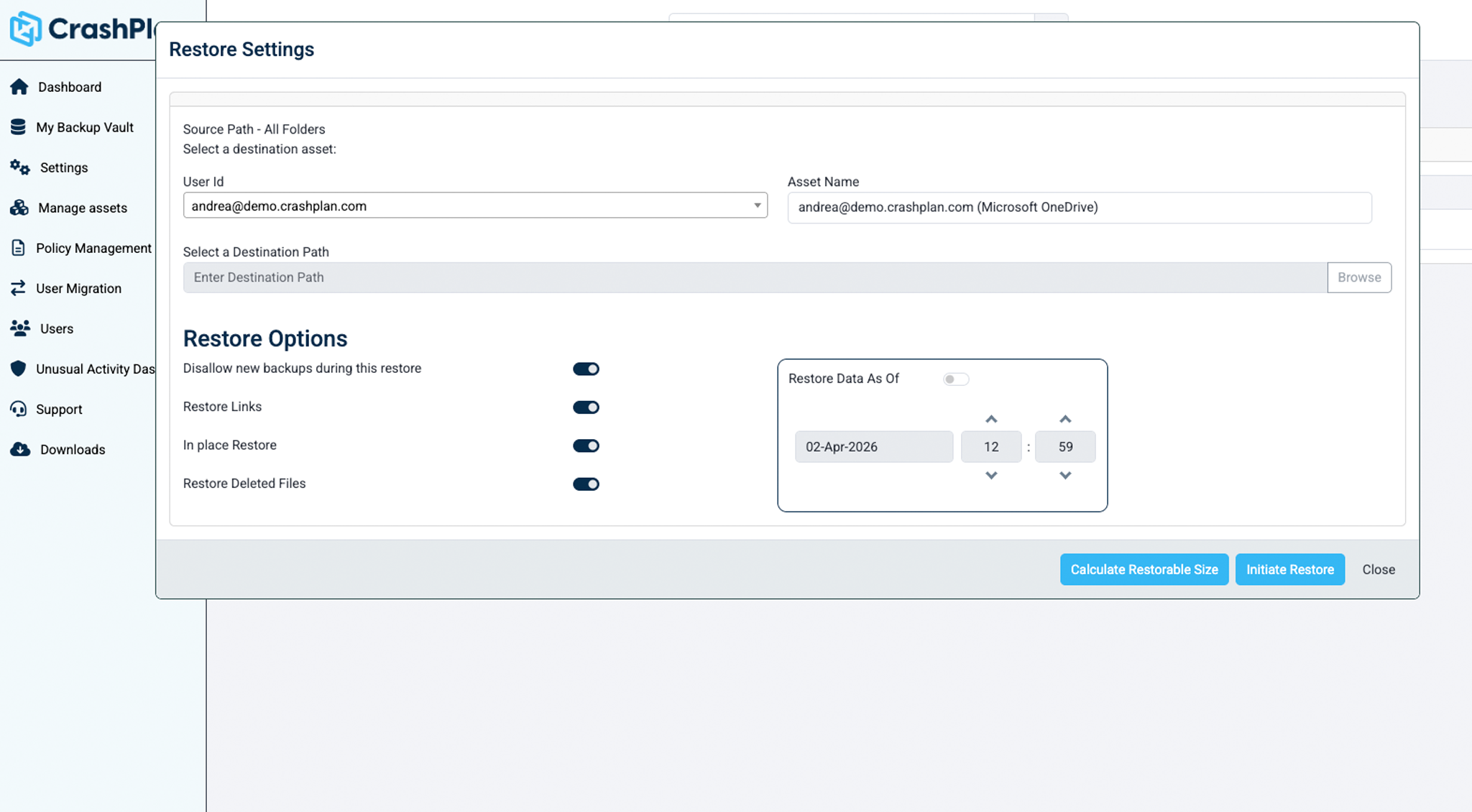
Traditional archiving removes data from everyday workflows. CrashPlan keeps archived files accessible to end users so they can work without disruption. Plus, archived documents are stored in the same place as your backups, so you can still search, restore, and export all this data within the CrashPlan console.

Screenshot: Backup restore options
Click to enlarge

When you archive with CrashPlan, you also get all the benefits of a robust backup and recovery solution for your active data. No matter the cause of data loss, CrashPlan’s automatic cloud backups, immutable storage, search, and point-in-time recovery get you back to a clean state quickly and easily.

Screenshot: Storage options
Click to enlarge

Take advantage of the Microsoft cloud with low-cost Azure blob storage. CrashPlan can utilize your Microsoft Azure Consumption Commitment (MACC) by moving data out of your Microsoft 365 tenant and into the Azure storage you’re already committed to. If you don’t have a MACC, you can also store backups in one of our other many storage destination options.

FAQ

How CrashPlan Archiving Works

1. How does CrashPlan archiving actually reduce Microsoft 365 storage costs?

Microsoft 365 pooled storage grows continuously, and once you exceed your included allotment, costs add up quickly. CrashPlan gives you a way to remove older, less frequently accessed data from Microsoft’s pooled storage while keeping it protected and available. By archiving eligible data, you reduce the amount of SharePoint and OneDrive storage counting toward Microsoft’s excess storage charges. Over time, this helps slow cost growth and gives you more control instead of reacting to Microsoft price increases. Read: Microsoft 365 archiving

2. How accessible is my archived data? Will archiving cause an inconvenience for users?

Archived data stays visible and usable for your users. When data meets the criteria you define in your policies, CrashPlan archives it and leaves a file stub in place. The file still appears in its original location, such as a SharePoint document library or OneDrive folder. If a user opens an archived file, it’s automatically restored from the CrashPlan archive. There’s no need for users to learn a new workflow and no requirement for IT to step in for routine access. From your perspective, archiving reduces storage pressure without increasing help desk tickets or operational overhead.

3. How does CrashPlan backup & archive support data resiliency?

Microsoft operates under a shared responsibility model, which means you’re still responsible for protecting your data. CrashPlan provides independent backup and recovery for Exchange Online, OneDrive, and SharePoint, in addition to archiving. If data is accidentally deleted, corrupted, or impacted by ransomware, you can recover it without relying on Microsoft’s limited native recovery options. You’re not just reducing storage costs—you’re reducing risk. Read our guide on SharePoint Online archiving cost benefits.

4. How does CrashPlan backup + archive support compliance?

If you’re subject to regulatory or legal retention requirements like HIPAA or SOX, deleting data isn’t an option—but keeping everything in Microsoft 365 is expensive. CrashPlan lets you retain data for as long as required without forcing it to stay in Microsoft’s pooled storage. Archived data remains encrypted and protected, and retention is governed by the policies you set. This allows you to meet compliance obligations without using Microsoft 365 as a long-term archive.

5. How do you charge for backup + archive?

CrashPlan is priced per user for you to backup and recover all your data in Exchange Online, OneDrive, and SharePoint. You have lots of choices in how you store your data, but for this model we assume you take advantage of CrashPlan’s 50GB per user of Azure storage included with your subscription, with additional data capacity charged per TB. For a quote based on your company size and storage preferences, contact us for a personalized quote.

6. What assumptions do you make in this calculator?

For ease of use, this online calculator presents a simplified picture. We’d love to talk to you about your unique situation to help determine your own potential savings. Following are the assumptions we make:

  • Calculator is based on Microsoft’s enterprise licensing.
  • Microsoft list price for excess pooled storage is $0.25/GB/month, or $3,000/TB/year. Microsoft recently raised this price from $0.20/GB/month. Microsoft is showing no signs of being regularly open to negotiation going forward.
  • Microsoft allows 1TB for your entire tenant plus 10 GB per user for pooled storage. This storage covers all SharePoint data plus any OneDrive data per user that exceeds the user’s standard 1TB quota.
  • Calculator assumes 75% of your SharePoint data is archivable due to age, recency of access, or other admin-defined criteria.
  • Average data growth per year assumes OneDrive, SharePoint, and Exchange all grow at the same rate.
  • Trend chart assumes no change in number of users, percent of archivable data, of cost of Microsoft or CrashPlan services from year to year. The only variable that changes is how much you pay in Microsoft overage fees versus how much you pay for your CrashPlan subscription and data capacity.

7. Where can I find the amount of data in my tenant?

Before using the calculator, you’ll need to collect a few easy-to-find data points:

  1. Number of licenses that contribute to your SharePoint pooled storage allowance
    Go to admin center, Billing > Your products. Count up all of the assigned licenses that include SharePoint access (e.g., Microsoft 365 E1/E3/E5; Business plans, SharePoint Online plans; Office 365 E plans).

  2. Current total storage usage
    Under Reports > Usage, note your storage totals for SharePoint, Exchange Online, and OneDrive.