
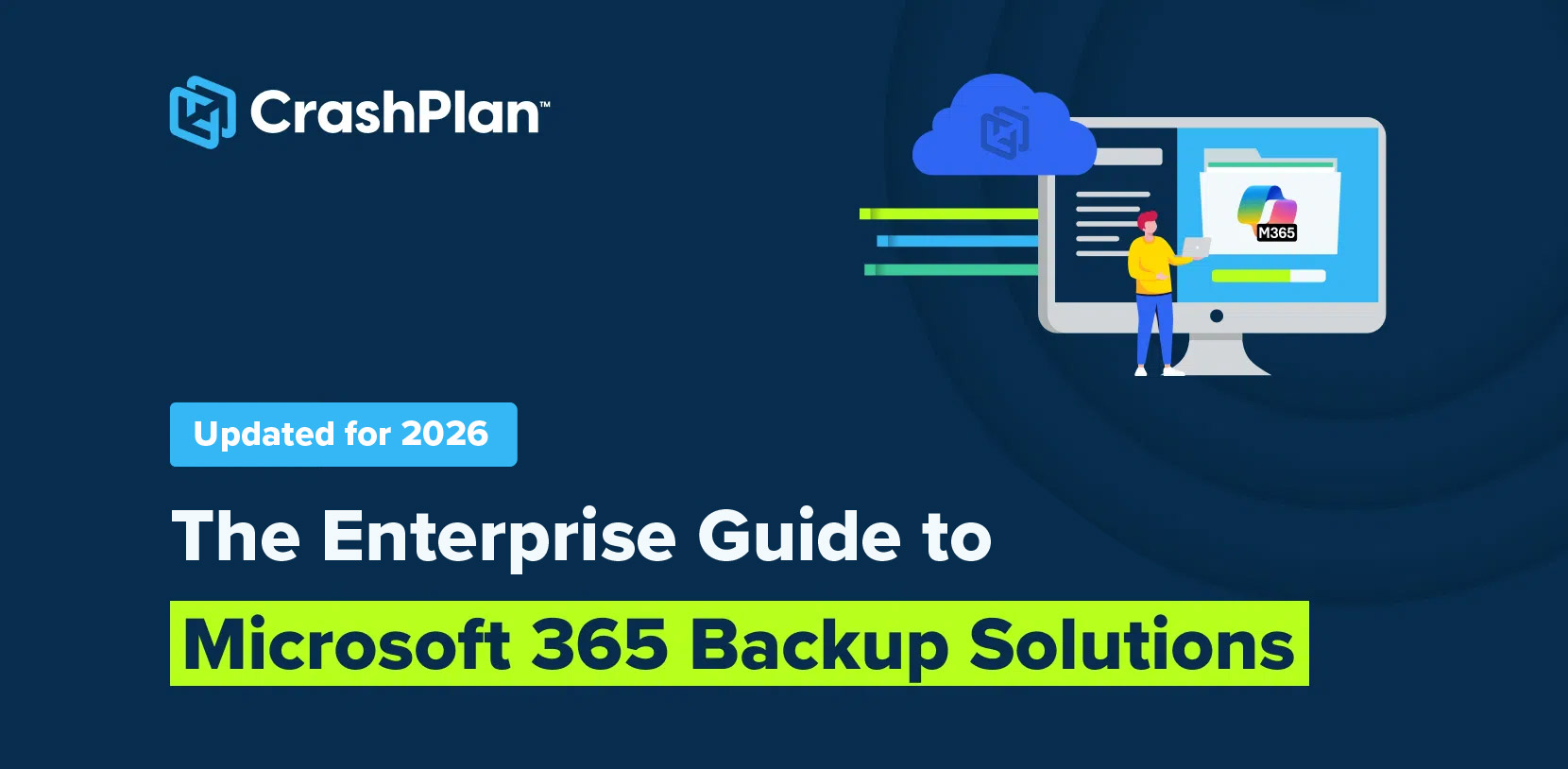
The Enterprise Guide to Microsoft 365 Backup Solutions
Microsoft 365 runs your business. Your emails, contracts, customer data, financial files, Teams chats—everything your teams touch daily lives there.
Now here’s the reality: Even in Microsoft 365, data can still be put at risk by ransomware, accidental deletion, retention or permission misconfigurations, insider actions, and credential-based attacks, making fast, dependable recovery critical.
In 2025, 44% of confirmed data breaches involved ransomware, according to Verizon’s Data Breach Investigations Report. At the same time, the average cost of a data breach reached $4.44 million globally. Those numbers represent stalled operations, legal exposure, lost trust, and long recovery cycles.
AI continues to amplify cybercrime. Attackers now use generative AI to craft more convincing phishing messages, impersonations, and social engineering attacks, making it easier to steal credentials and take over cloud accounts.
Modern organizations need backup solutions that:
- Create independent, secure copies of Microsoft 365 data
- Allow granular recovery when specific documents, emails, or site data are affected
- Support fast, large-scale restores when automation goes wrong
- Preserve compliance, auditability, and legal defensibility
This guide walks you through what Microsoft 365 backup really means in 2026.
Why Your Microsoft 365 Data Needs a Backup
Microsoft follows a shared responsibility model. This means Microsoft keeps the platform secure, available, and running smoothly, but your data is your responsibility.
If an email is accidentally deleted, a file is overwritten, ransomware encrypts your data, or an employee removes content by mistake, Microsoft doesn’t guarantee the data is recoverable. Long-term data retention and recovery are your responsibility.
Without a dedicated backup solution, that data may be permanently lost.
To understand why Microsoft’s native protections aren’t designed as a full backup solution, this article explains why you need to back up Microsoft 365 , including common data loss scenarios and responsibility gaps organizations often overlook.
Microsoft 365’s Native Data Protection vs. Third-Party Backup Solutions
Microsoft 365 offers limited native data protection. It’s critical to understand the differences between built-in protection and third-party backup solutions to ensure comprehensive data security.
What Microsoft 365 Offers for Data Protection (and Where It Falls Short)
- Retention policies: Depending on your Microsoft 365 plan, you can set
rules to retain or delete content for compliance and governance. However, these policies
are not backups—once the retention period ends and data is deleted, it cannot be
recovered through Microsoft 365.
- Recycle Bin and versioning: OneDrive and SharePoint can restore
deleted files from the Recycle Bin for up to 93 days, though only part of that period is
accessible to end users. Versioning can roll documents back to earlier edits. Exchange
Online also offers short-term recovery for deleted emails—typically up to 14 days by
default, of 30 days if extended by an admin. The catch is that all these features are
limited, and recovery often needs IT or Microsoft 365 admin intervention, slowing users
down and increasing IT tickets.
- Litigation Hold and other compliance tools: Features such as Litigation
Hold and In-Place Hold can preserve data for legal and regulatory needs. But they don’t
create an independent backup copy, so they’re not designed for fast, complete
restores.
- Slow, incomplete recovery: The Recycle Bin isn’t a full recovery
solution, especially at scale. Restores can be partial, time-consuming, and unreliable
when recovering large or complex datasets. And if you need to perform a bulk,
point-in-time restore, native Microsoft 365 tools make that process difficult or
impossible.
- Uncontrolled storage costs: Microsoft 365 data often grows 20%+ year
over year, and Microsoft’s included storage pool is limited. Storage can easily expand
faster than budgets, leading to overage fees, surprise cost spikes, and higher long-term
spend.
Where Microsoft 365 Commonly Falls Short
How CrashPlan Closes the Gaps
Microsoft 365 provides baseline protection at the enterprise level. CrashPlan fills those gaps with a backup strategy designed to support growth, build recovery confidence, and deliver long-term value.
Lower Storage Costs and No Vendor Lock-In
Microsoft 365 provides baseline protection at the enterprise level. CrashPlan fills those gaps with a backup strategy designed to support growth, build recovery confidence, and deliver long-term value.
Instead of being forced into a single vendor’s pricing model, customers can leverage their existing cloud storage (such as Azure or related repositories), repurpose their unused OneDrive storage, or choose low-cost proprietary cloud options like CrashPlan’s cloud—without sacrificing security or recoverability.
Why it matters for your business: Predictable costs, lower total cost of ownership, and flexibility that protects budgets as data grows.
Prevent Microsoft 365 Data Growth from Blowing Up Your Budget
Data growth in SharePoint, OneDrive, and Exchange Online is unavoidable. What is avoidable is paying premium storage costs for inactive, low-value data.
CrashPlan helps organizations rein in Microsoft 365 storage sprawl by intelligently archiving inactive documents, so you can retain data as long as necessary without expanding your SharePoint pooled data costs
Why it matters for your business: Lower data storage costs with smart archiving, fewer overage surprises, and predictable growth that scales with the business.
Recover Fast Without Rebuilding or Downtime
When something goes wrong, both the speed and completeness of recovery determine the business impact. Native Microsoft tools often require time-consuming rebuilds, manual intervention, and can’t always fully restore data. CrashPlan restores data exactly as it was, quickly, completely, and without IT becoming a bottleneck.
CrashPlan enables role-based self-service recovery options, so users can restore what they need while IT maintains full control and visibility.
Why it matters for your business: Faster RTOs, fewer helpdesk tickets, and employees back to work in minutes, not hours.
What Features Should You Look for in a Microsoft 365 Backup?
Choosing the right backup solution is critical to ensuring your Microsoft 365 data remains protected and easily recoverable. Here are the essential features to look for:
Comprehensive Data Protection Across Microsoft 365 Services
A backup solution should provide complete coverage for all Microsoft 365 applications:
- Outlook backup, including emails, attachments, calendars, and contacts.
- SharePoint and OneDrive backup , including files, folders, libraries, and metadata.
- Teams backup, including files shared in conversations and meeting recordings (stored in SharePoint and Exchange Online).
Security and Administration
- Encryption (in transit and at rest) to ensure your data is always protected.
- Ransomware protection and immutable backups to prevent unauthorized modifications or deletions.
- Role-based access control (RBAC) for secure, role-specific administration.
Retention and Restore Capabilities
- Granular and point-in-time restore to recover exactly what you need.
- Retention policies for long-term compliance to meet legal and industry regulations.
- Versioning and file recovery options for document rollback and corruption recovery.
Backup Automation and Monitoring
- Scheduled and continuous backups for real-time or frequent protection.
- Monitoring, alerts, and reporting for complete visibility into backup health.
Data Sovereignty and Compliance Adherence
- Ensure compliance with HIPAA, GDPR, FINRA, and other regulatory standards.
- Choose a provider with geographically distributed data centers to meet local compliance needs.
CrashPlan: Built for Enterprise Trust
CrashPlan protects Microsoft 365 data with security, privacy, and compliance controls designed for highly regulated environments.
- Independently audited controls: SOC 2 Type II–audited and ISO
27001–aligned programs covering confidentiality, availability, and operational security.
- Compliance-aligned protections: Controls supporting GDPR, HIPAA, and
other regulatory frameworks.
- End-to-end encryption with customer-managed key control: AES-256
encryption for backup and restore workflows, with optional per-organization key
management for enhanced data ownership.
- Regional data residency and sovereignty: Choose where protected data is
stored to meet residency mandates and governance requirements.
How Microsoft 365 Backup Supports Different Teams
CrashPlan’s Microsoft 365 backup ensures every department can stay operational, compliant, and secure.
Creative files, code, reports, and every team member rely on something. A solid Microsoft 365 backup plan protects it all and keeps work on track.
IT Teams
- Streamline user transitions
Quickly move or restore user data when employees join, leave, or change roles within the organization.
- Stay audit-ready
Keep detailed logs and file histories that help meet compliance and audit requirements.
- Reduce support tickets
Empower users to recover their files and reduce the load on the help desk team. Support legal hold requirements with dedicated legal hold policies.
- Prevent internal data loss
Ensure business data remains safe even when users intentionally or accidentally delete files.
Legal and Compliance Teams
- Protect legal files and emails
Back up signed agreements, compliance documents, and legal communications stored across SharePoint, OneDrive, and Exchange Online.
- Maintain chain of custody
Restore exact file and email versions to prove proper handling during audits, disputes, or investigations. Support legal hold requirements with dedicated legal hold policies.
- Access records faster
Quickly retrieve critical compliance documents and communications during audits, inquiries, or legal reviews.
- Preserve legal histories
Recover earlier drafts of contracts, filings, and emails to support defense strategies or timeline reconstructions.
Human Resources (HR)
- Protect employee records
Protect onboarding files, payroll details, performance reviews, benefits information, and other sensitive employee data.
- Meet privacy requirements
Back up contracts, consent forms, and personal documents to stay compliant with GDPR, HIPAA, and employment regulations.
- Simplify employees transitions
Quickly restore employee files during hiring, promotions, exits, or internal moves.
- Keep smooth operations
Ensure uninterrupted access to essential files that support payroll, onboarding, benefits updates, and daily HR activities.
- Support reviews and audits
Retrieve past records, disciplinary files, and policy documents easily when handling investigations or compliance checks.
Sales Teams
- Back-up proposals and deal files
Protect critical sales documents like contracts, quotes, and customer proposals from accidental loss or data issues.
- Recover lost sales materials
Quickly restore lost, deleted, or overwritten sales decks, proposals, and pricing documents without disrupting negotiations.
- Retain customer and account histories
Store customer conversations, deal notes, and account plans safely to maintain continuity when sales reps move or exit.
- Retrieve older proposals easily
Retrieve past quotes, proposals, and agreements quickly to accelerate upsell, renewal, and re-engagement opportunities.
- Reduce downtime during CRM transitions
Back up customer records and sales activities to avoid data gaps when switching CRM systems or restructuring teams.
- Speed up sales cycles
Ensure teams always have the latest sales collateral ready during critical deal stages, client meetings, or final negotiations.
Finance Teams
- Backup financial data
Protect budgets, revenue reports, and forecasts across M365 to avoid disruptions during planning cycles.
- Track clean audit trails
Keep reliable version histories of financial records to trace discrepancies quickly during audits or reviews.
- Store tax and compliance files safely
Back up tax filings, regulatory reports, and SEC submissions to stay ready for compliance audits.
- Retain transaction and payment records
Back up invoices, purchase orders, and expense reports that are needed for reconciliations and audits.
- Support smooth financial closes
Keep monthly closes, quarterly filings, and year-end reporting on track with uninterrupted access to critical files.
- Keep approval workflows intact
Save approvals, reconciliations, and financial review files that support SOX requirements and internal controls.
How to Choose the Right Microsoft 365 Backup Strategy
Microsoft 365 is a shared responsibility platform. Your backup strategy should be engineered around recoverability, governance, and operational scale, not just having copies.
RPO/RTO Engineering
Define:
◦ RPO (max acceptable data loss) → drives backup cadence
◦ RTO (max acceptable downtime) → drives restore throughput, concurrency, and orchestration
If you have strict recovery objectives (large tenants, distributed sites, ransomware scenarios), consider architectures that support high-frequency restore points (e.g., 10-minute) and high restore throughput (TB/hour at scale).
Restore Granularity
Most incidents don’t require restoring the entire tenant, which could just be a personal preference. Validate you can restore at the right scope:
◦ Item-level (mailbox items, files)
◦ User/account (OneDrive or Exchange account)
◦ Site-level (SharePoint site)
Also confirm restores preserve metadata/permissions and can be executed at scale (hundreds/thousands of objects).
Retention Architecture & Compliance Controls
Native retention and eDiscovery are governance controls, not a substitute for backup. Your backup design should include:
◦ policy-driven retention aligned to regulation
◦ legal hold/eDiscovery workflows
◦ auditable admin actions and role separation
Storage Architecture & Cost Optimization
Storage choice impacts cost, residency, and control. A modern strategy supports:
◦ bring-your-own storage (control/residency)
◦ low-cost cloud targets (economics)
◦ leveraging unused OneDrive capacity as a backup destination where appropriate (reduces TCO)
Backup Security
Minimum requirements:
◦ encryption in transit and at rest
◦ SSO, RBAC, and audit logs
◦ immutable or deletion-protected backups to prevent tampering or ransomware
◦ Isolated backup access to prevent deletion or tampering during credential compromise
These controls are explicitly called out for enterprise-grade M365 backup integrations.
Operational Management & Reporting
A Microsoft 365 backup strategy must be operationally viable at scale. Beyond backup and restore, teams need centralized control, visibility, and proof that data is protected and recoverable.
◦ Centralized control: Manage policies, retention, restores, and access from one console.
◦ RBAC + audit trail: Enforce least-privilege roles with logged administrative actions.
◦ Monitoring + alerts: Backup/restore health, failures, and capacity with actionable notifications.
◦ Audit-ready reporting: Scheduled/on-demand reports for coverage, retention status, and restore history.
What Are the Best Practices for Microsoft 365 Backup?
Microsoft 365 offers built-in data protection features, but they have limitations in retention, recovery, and security. To ensure complete data protection, follow these best practices for implementing a strict backup strategy.
Operational Management & Reporting
Maintain copies of your Microsoft 365 data outside the primary environment to protect against insider threats, ransomware, accidental deletion, or corruption. Use a secure, immutable storage environment (cloud, Azure, or your own storage) to ensure resilience and regulatory compliance.
Implement Clear Retention & Archiving Policies
Define retention policies that align with legal and compliance requirements — don’t rely on Microsoft’s limited native retention windows (e.g., recycle bin retention). Include archiving for inactive or old data (e.g., SharePoint, Exchange) to control costs and optimise storage without blocking user access.
Assess Your Backup Needs
Identify and prioritise critical SaaS data across Exchange Online, OneDrive, and SharePoint. Understand compliance, retention, and recovery objectives (RPO/RTO), so your protection strategy matches business risk and regulatory demands.
Secure Backups With Strong Encryption
Ensure end-to-end encryption (in transit and at rest) and immutable backup storage to prevent unauthorized access and protect data integrity. Use role-based access controls and, where supported, optional customer-managed keys.
Choose a Reliable Third-Party Backup Solution
Select a provider that:
- Automates backup schedules and incremental backup capture.
- Offers granular and full restores, including files, emails, folders, and entire
accounts.
- Includes ransomware protection, compliance automation, and audit reporting.
- Supports flexible storage options .
Ensure Granular & Rapid Recovery
Good backup solutions enable:
- Item-level restores (single email, file, or folder).
- Full workload, point-in-time restores (entire mailboxes, SharePoint sites, etc).
- Rapid recovery performance via cloud-to-cloud restore or API integrations, ensuring
minimal downtime
Include Legal Hold, eDiscovery & Compliance Support
Ensure your backup solution includes:
- Legal hold controls
- Search and export capabilities to support eDiscovery
- Audit and retention rule enforcement
- Flexible storage destinations that meet data residency requirements
Monitor and Audit Backup Activities
Enable logging and monitoring for all backup operations. Set alerts for failed backups, unusual deletion patterns, and unauthorized access attempts to quickly identify potential incidents.
Train Users & Admins on Backup Best Practices
Educate on versioning, self-service restores, retention policies, and safe data handling. Ensure IT knows how to manage backup configurations and monitor alerts for failures or anomalies.
Conclusion
Microsoft 365 plays a critical role in how organizations work, collaborate, and make decisions every day. But protecting that data takes more than built-in retention and availability features. A modern Microsoft 365 backup strategy is designed for recoverability, governance, and scale. It ensures data can be restored accurately, at the right level of detail, and within defined recovery objectives. It supports the shared responsibility model while ensuring compliance, audit readiness, and long-term data growth.
When backup is done right, it almost fades into the background. Independent copies, flexible retention, and efficient recovery workflows reduce operational friction and give IT teams confidence that data is protected and recoverable when it matters most. With the right approach, Microsoft 365 backup becomes a foundation for resilience, supporting the business without adding complexity or unnecessary cost.
CrashPlan Microsoft 365 Backup and Ransomware Recovery FAQs
How does CrashPlan help recover Microsoft 365 data after ransomware?
CrashPlan enables recovery by maintaining frequent backups with version history, allowing organizations to restore data from a known-good point in time prior to infection. This provides IT teams with a clean recovery path when files have been encrypted, corrupted, or unintentionally modified.
Can CrashPlan recover data encrypted by ransomware?
Yes. If ransomware encrypts files, CrashPlan allows you to restore uninfected versions from a pre-attack point in time, provided your backup frequency and version retention settings preserve sufficient historical versions. Recovery is based on selecting the appropriate restore point rather than attempting to repair encrypted data.
How quickly can data be restored after a ransomware attack?
Restore time depends on the volume of data, the scope of the incident, and the restore method used. In practice, organizations typically restore critical users, mailboxes, or sites first to meet business RTOs, rather than restoring an entire tenant at once.
CrashPlan supports parallel, point-in-time restores so IT teams can prioritize high-impact data and begin recovery immediately while broader remediation continues. Fast recovery depends on having frequent backups and sufficient version retention in place before an incident occurs, ensuring clean restore points are available when needed.
How granular is ransomware recovery with CrashPlan?
CrashPlan recovery is driven by file versions and restore points. Administrators can restore data to a specific date and time prior to infection, selecting individual files, folders, users, or workloads as needed. This granular approach helps limit disruption and avoids unnecessary full-environment restores.
Should I isolate the impacted device or account before restoring data?
Yes. Containment is a critical step in ransomware response. Organizations should follow their incident response process to isolate or remediate compromised devices or accounts before restoring data. This reduces the risk of reinfection and ensures restored data remains clean.
How frequently should backups run to meet ransomware recovery objectives (RPO)?
Backup frequency should align with your maximum acceptable data loss (RPO) and the workloads being protected. Many organizations configure frequent incremental backups—often as often as every 15 minutes for high-change data—while adjusting frequency for large or less frequently modified files to balance performance and coverage.
The goal is to maintain multiple clean restore points leading up to an incident. Backup frequency should be validated through restore testing to confirm it supports RPO targets under real-world conditions.
How does CrashPlan support recovery if credentials or endpoints are compromised?
CrashPlan is designed to support recovery even when endpoints or user credentials are compromised. Centralized administrative control, role-based access, and audit logging help limit who can modify backup policies or initiate restores.
By separating backup administration from endpoint access and maintaining historical restore points, organizations can recover data to a clean state without relying on the integrity of the compromised device or account. These controls help reduce the risk that an attacker can disrupt or sabotage recovery efforts during an incident.
How can organizations prevent ransomware-infected files from being backed up?
Preventing ransomware entirely is not realistic, which is why recovery readiness matters more than attempting to block every infected file from being backed up. While file-type exclusions can be configured for known ransomware extensions, modern ransomware often avoids predictable patterns, making exclusions an incomplete safeguard.
A more reliable approach is to maintain frequent backups with multiple historical restore points, combined with monitoring and alerting to detect unusual file-change activity. This ensures organizations can roll back to a clean state even if some infected files are captured before an incident is detected.
How can administrators confirm that backups are actually running?
Organizations can verify backup health using operational visibility tools such as:
- Device Status Reports (backup completion percentage, last completed backup time, last
backup activity)
- Warning emails when devices or services can’t reach backup destinations after a defined
period
- Console monitoring for connection and backup statistics
- The CrashPlan API (for example, DeviceBackupReport) for programmatic monitoring and
reporting
Regular monitoring and alerting help ensure backups remain reliable and recoverable.
Why is file synchronization not a safe defense against ransomware?
File synchronization is not a backup. If a ransomware-infected file is synchronized, encryption can propagate across synced locations and overwrite healthy versions, eliminating clean recovery options. Backup solutions that maintain independent copies and version history are required for reliable rollback to a known-good state.
In Practice
Most recoveries don’t involve restoring everything at once. IT teams typically isolate affected accounts or devices, then restore specific users, mailboxes, or SharePoint sites from a known-good point in time, often starting with executive or revenue-critical data. Backup strategies that support granular, parallel restores and preserve multiple historical versions make it possible to meet aggressive RTOs without rebuilding entire environments.
Get the pdf version of The Enterprise Guide to Microsoft 365 Backup Solutions.
Related Resources


CrashPlan is the enterprise platform for resilient, secure, and cost-effective backup and recovery. Purpose-built to safeguard critical data across endpoints, servers, and SaaS applications, CrashPlan empowers organizations to maintain business continuity, meet compliance standards, and protect the ideas that drive growth—without disrupting end users. CrashPlan helps enterprises and institutions reduce storage costs with innovative storage strategies, like zero-cost backup to OneDrive, while maintaining control and visibility across their backup environment.
© 2026 CrashPlan® All rights reserved.

Privacy | Legal | Cookie Notice | Free Trial