Your customer call starts in ten minutes. The email approving a new delivery date is in Outlook, the proposal is in OneDrive, and the rollout plan is on SharePoint. Microsoft 365 is inaccessible. All of those records still exist. Can you get to them in time for the call?
That question belongs in every data resilience plan. IT teams plan for deleted files, corrupted data, and ransomware. They test how quickly they can recover a mailbox or restore a SharePoint site. Data resilience also means giving people a way to reach the information they need while the service they normally use is inaccessible.
November offered several reminders of how quickly a familiar service can become unavailable. An FAA network disruption grounded departures nationwide. Chase customers experienced a banking outage. A Microsoft 365 disruption kept some employees from reaching their Exchange mailboxes and files in OneDrive or SharePoint. For IT leaders, the Microsoft example brings the issue close to home. While Microsoft works to restore service, what options do you have to ensure their data is available? What can your employees do on their own?
Put backups within reach of the people who need them
Think about what it would take to keep that customer call on the calendar. The account manager needs to read an approval, check a price, and confirm a milestone. With CrashPlan for Microsoft 365 or Google Workspace, employees can go directly to the self-service portal to access backups of their own content.
- Email unavailable? Search backed-up email by sender, subject, or a phrase from the message. Read the customer’s exact wording before confirming the delivery date.
- OneDrive or Google Drive offline? Download or view a backed-up copy of the proposal and open it locally. Check the version before quoting a price, especially if the proposal changed that morning.
- Can’t open Collaboration Sites like SharePoint? A team member with access to the site’s backup can retrieve the rollout plan and check the next milestone.
For the account manager, that can mean keeping a commitment to a customer. For the help desk, it means one fewer ticket at a time when plenty of other requests need attention.
Choose where your backup copy lives
A self-service portal answers one question: where should employees go when an app is down? A broader cloud storage outage raises a second: where will the portal get its data?
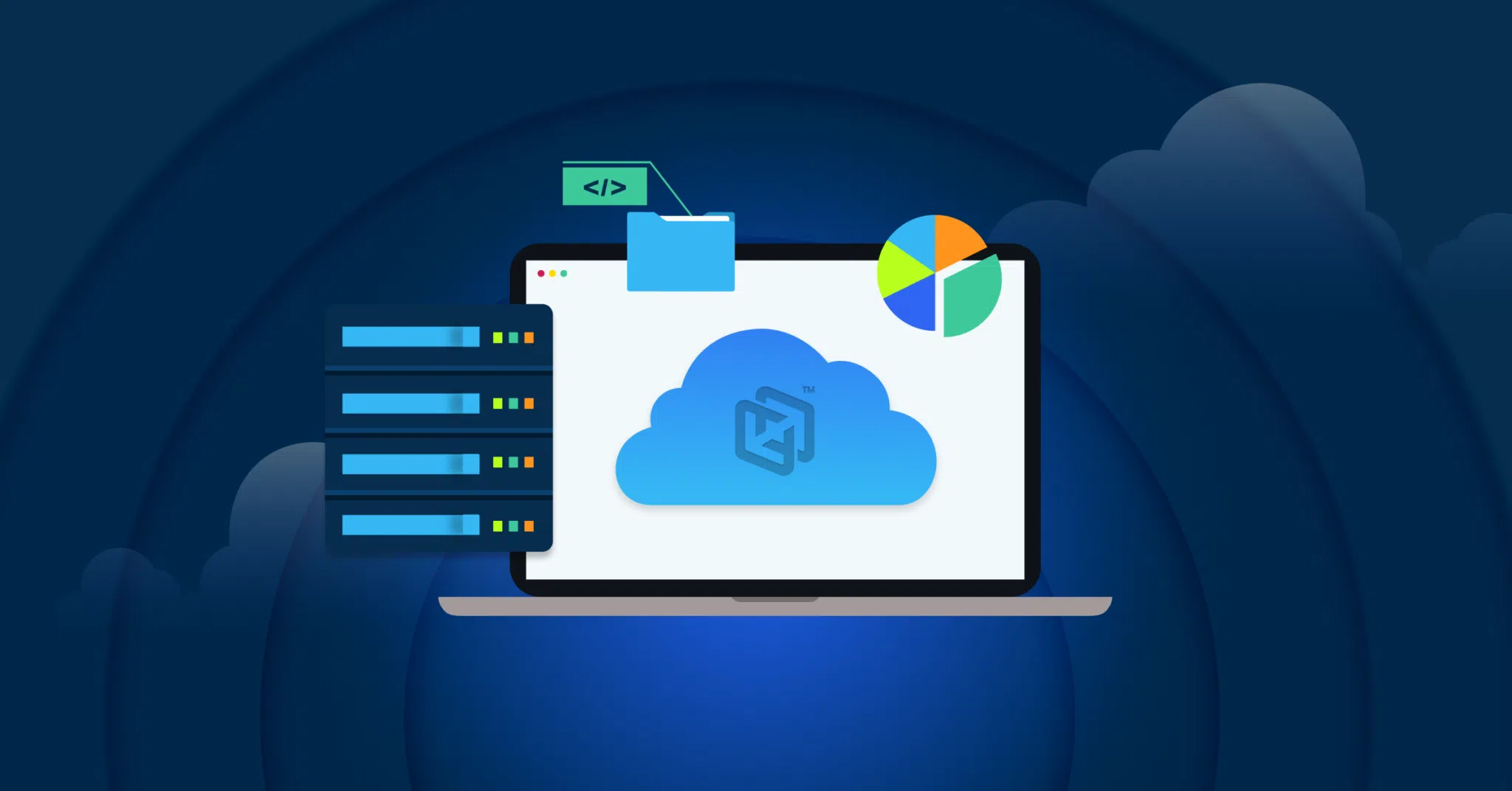
CrashPlan gives you several choices. You can use CrashPlan-managed Azure storage, bring your own storage, or keep your backups in CrashPlan’s own data centers. If you choose CrashPlan’s data centers, your Microsoft 365 backup copy sits outside Azure Storage.
That makes backup location a business continuity decision. When you evaluate storage options, consider which services your employees already depend on and which of those services they would also need to retrieve a backup.
Add an access test to your next recovery exercise
At your next recovery exercise, give someone outside IT a simple task: “Email and your file drive are unavailable. Find the customer’s approval and the rollout plan before the call starts.” Have them use their everyday account and start wherever they would on a normal workday.
Watch where they get stuck. Maybe the only link to the backup portal is in their inbox. Maybe they can retrieve their own files, but nobody on the project team knows who can access the shared plan. Then ask IT to trace the sign-in and storage steps. Which would still work if the disruption extended beyond Microsoft 365 to your identity or storage provider?
A successful restore tells you that you can recover a file. This exercise tells you something equally important: whether the person who needs it can get to it in time to use it.
Explore CrashPlan Backup and Recovery for Microsoft 365.
Explore CrashPlan Backup and Recovery for Google Workspace
About the Author