What Happens If Your Data Disappears?
It’s 8:42 AM.Your sales manager calls: “Hey… all the contract folders in SharePoint are gone.”
Five minutes later, you realize:
- The recycle bin was emptied
- Version history doesn’t go back far enough
- You’re not sure what your retention policy actually does
- And no one knows whether Microsoft 365 is truly backed up
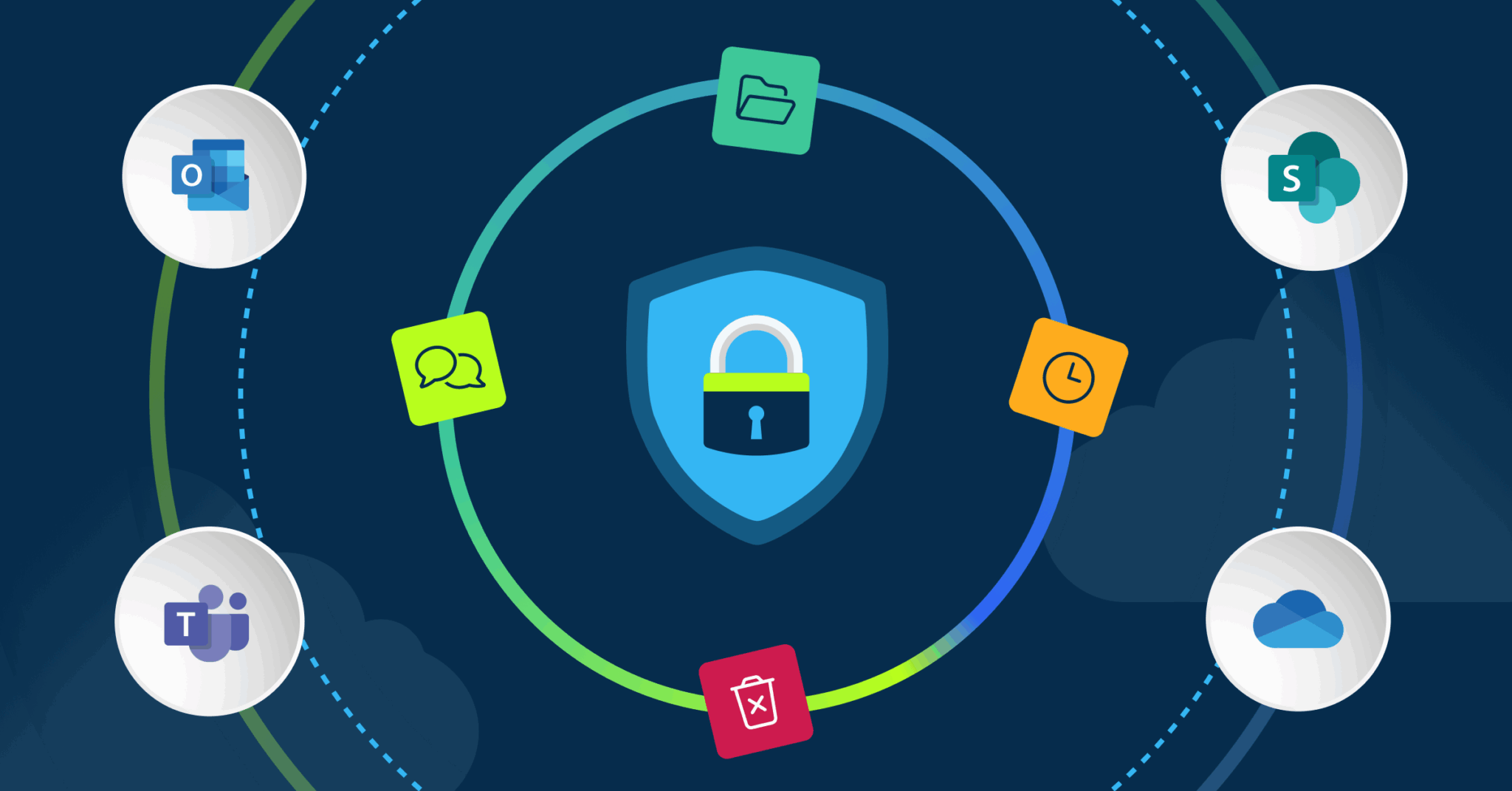
For many small businesses, this is the moment they discover a hard truth: Microsoft 365 is not a complete backup solution by default. If your business runs on Exchange Online, OneDrive, SharePoint, and Teams, you need to understand exactly what’s protected and what isn’t.
This FAQ breaks it down clearly:
- Does Microsoft 365 have built-in backup?
- What’s the difference between retention and backup?
- Can you restore deleted emails after 90 days?
- How often should backups run?
- And what should small businesses actually protect?
Does Microsoft 365 have built-in backup?
Not in the way most small businesses expect.
Microsoft 365 includes features like:
- Recycle bins (for deleted files)
- Version history (but Microsoft’s versioning isn’t a full file versioning backup solution) Retention policies (Microsoft 365’s retention settings are only designed for short-term data management, not long-term, comprehensive backup)
- Litigation hold (for some plans)
- eDiscovery tools
These features can help you recover some data in some situations. But they are not the same as a true backup.
Here’s the difference. If:
- A file is permanently deleted
- A mailbox is maliciously wiped
- Ransomware encrypts shared files
- A user account is removed
- Or data falls outside Microsoft’s retention window
Recovery becomes complicated and sometimes impossible.
That’s why many small businesses use dedicated Office 365 backup software for small business environments, even if they already rely on Microsoft’s built-in tools.
Why are small businesses especially vulnerable?
Large enterprises often have:
- Dedicated compliance administrators
- Carefully configured retention policies
- Legal holds enabled
- Disaster recovery plans tested quarterly
Most small businesses don’t.
Instead, they have:
- A small IT team (or one IT generalist)
- Default Microsoft settings
- Limited time during an emergency
- And no margin for prolonged downtime
If your business relies on:
- Email for contracts
- OneDrive for shared files
- SharePoint for operations
- Teams for collaboration
Then losing access, even for a day, can mean lost revenue, damaged trust, or compliance risk.
Backup isn’t about storage. It’s about recovering when something goes wrong.
What’s the difference between retention and backup?
This is where confusion causes the most damage.
Retention = “Keep data longer”
Retention tools are built for compliance and governance. They may:
- Delay deletion
- Preserve data for legal reasons
- Prevent users from permanently deleting content
- Help with audits or legal holds
Retention is useful, but it’s about preservation. It’s not designed for fast, simple recovery during a crisis.
Backup = “Restore data when something goes wrong”
Backup is built for recovery. A proper Microsoft 365 backup solution should allow you to:
- Roll back to a clean point in time
- Restore a deleted mailbox
- Recover a specific file or folder instantly
- Restore an entire SharePoint site
- Recover after ransomware
Bottom line: Retention helps you keep data. Backup helps you get it back.
For small businesses without full-time Microsoft compliance expertise, that distinction is critical.
Can I restore deleted emails after 90 days?
Sometimes, but it depends on:
- How the email was deleted
- Whether retention was configured correctly
- Your Microsoft 365 plan
- Whether litigation hold is enabled
- Whether the mailbox still exists
Most small businesses don’t discover gaps in their recovery strategy until after data is already gone. With a dedicated backup solution, restoring emails after 90 days is predictable. Without one, it’s uncertain. And uncertainty during a data loss event is not where you want to be.
Is OneDrive automatically backed up?
Not in the true backup sense.
OneDrive includes:
- Sync to local devices
- Version history
- Recycle bin recovery
But here’s the risk. If a file is:
- Overwritten
- Corrupted
- Encrypted by ransomware
- Deleted accidentally
- Deleted by a malicious actor
…those changes sync across devices. Sync is not backup.
A proper M365 backup for small business keeps independent, recoverable copies outside the live Microsoft 365 environment.
How often should backups run?
For most small businesses, daily backups are the minimum baseline.
Suggested backup frequency for small businesses
- Daily backups for Exchange Online, OneDrive, SharePoint, and Teams
- Multiple backups per day if your business:
- handles contracts or legal documentation
- processes financial transactions
- relies heavily on shared files
- has strict compliance needs
The key factor: your recovery point objective (RPO)
RPO is how much data you can afford to lose.
- Daily backup = up to 24 hours of potential loss
- Twice daily = up to 12 hours
- Hourly backup = minimal loss (but may cost more)
When comparing Microsoft 365 backup pricing for small business, backup frequency is one of the biggest factors that impact cost.
What should a small business back up in Microsoft 365?
At a minimum, a small business should back up:
- Exchange Online (email, calendars, contacts)
- OneDrive for Business
- SharePoint Online
- Microsoft Teams
A good Office 365 backup software for small business solution should cover all of these in one platform.
How long should a small business retain Microsoft 365 backups?
Most small businesses choose:
- 1–3 years for general business continuity
- 5–7 years for regulated industries or legal protection
- Indefinite retention for executive mailboxes or critical departments
Your retention needs will directly impact Microsoft 365 backup pricing for small businesses, especially if storage grows quickly.
Does Microsoft recommend third-party backup?
Microsoft generally promotes the shared responsibility model, which makes it clear that customers are responsible for protecting their own data.
In practice, many organizations, especially SMBs, use third-party Office 365 backup solutions for small business to reduce risk and simplify recovery.
What should I look for in Office 365 backup software for small business?
Here’s a quick checklist:
Must-have features
- Automated backups
- Easy restores (single item to full mailbox)
- Exchange + OneDrive + SharePoint coverage
- Secure encryption
- Ransomware recovery support
- Simple setup for small IT teams
Nice-to-have features
- Immutable storage
- Advanced audit logs
- Cross-user restore
- Alerts and backup health reporting
How much does Microsoft 365 backup cost for a small business?
Pricing varies based on:
- Number of users
- Storage included
- Retention length
- Backup frequency
- Whether Teams data is included
If you’re actively comparing options, it’s smart to review pricing based on your actual user count and retention needs—not just the lowest sticker price.
What’s the easiest way to protect Microsoft 365 data as a small business?
The simplest, most reliable approach is:
- Choose dedicated Office 365 backup software for small business
- Enable automatic protection for all users
- Set retention rules that match your business requirements
- Run quarterly restore tests
This gives you predictable recovery outcomes, without needing enterprise-level Microsoft compliance expertise.
Final Takeaway: Small Businesses Need Backup, Not Just Retention
Microsoft 365 is a powerful productivity platform, but it’s not a complete backup solution by default. Microsoft provides tools like recycle bins, retention policies, and version history, but those features were designed for data management, not full disaster recovery.
CrashPlan offers a 14-day trial of its Microsoft 365 backup solution. If your business depends on email, OneDrive, SharePoint, and Teams, investing in M365 backup for small business is one of the most practical ways to reduce risk and avoid expensive downtime.
About the Author